

/filters:quality(70)/prod01/prodbucket01/media/durham-university/external-location-photography-/city-shots-/82922-1920X290.jpg)
Transferring Data to/from Hamilton
Data can be transferred between Hamilton and external storage in numerous different ways. Some common methods are described on this page.
tabs content
Command-line tools
The scp command can be used in linux, Mac OSX and Windows to copy items from one computer to another. You will need a Terminal window (linux/Mac) or Command Prompt (Windows) to run the command. The format of the command is:
scp <items to copy> <where to copy them to>Note that the scp command should normally be typed on your local computer, not on Hamilton. You will need to supply your Hamilton password and (if not on the campus network or University VPN) multifactor authentication when prompted. Examples:
Copy my_file from your current directory on your local computer to Hamilton, where your username is <username>. You must include the ':' after the address of the remote machine (Hamilton). With no destination directory specified in this example, my_file will be placed in your Hamilton home directory.
scp my_file <username>@hamilton8.dur.ac.uk: Copy my_file from your current directory on local computer to your /nobackup directory on Hamilton:
scp my_file <username>@hamilton8.dur.ac.uk:/nobackup/<username>/Copy hamilton_file from your Hamilton /nobackup directory to your current directory (referred to as '.') on your local machine:
scp <username>@hamilton8.dur.ac.uk:/nobackup/<username>/hamilton_File .To transfer multiple files in one go, list them on the command line and/or use wildcards such as '*'. To copy all files whose names begin with my_file from your current directory on your local computer to your /nobackup directory on Hamilton:
scp my_file* <username>@hamilton8.dur.ac.uk:/nobackup/<username>/To transfer a directory and all its contents, you will need to include the option -r to copy recursively. To copy my_directory and its contents from your current directory on your local computer to your /nobackup directory on Hamilton:
scp -r my_directory <username>@hamilton8.dur.ac.uk:/nobackup/<username>/
In addition to the scp command, files can be transferred between Hamilton and other Linux/Mac machines using the rsync command:
rsync -av <directory> <username>@hamilton8.dur.ac.uk:Enter the command (replacing <username> with your University user name, and <directory> with the directory you wish to transfer to hamilton). Unlike scp, which transfers the file(s) specified, this command only transfers files that are different - so can speed up the process of synchronising a directory if there have been a small number of changes.
Detailed information on how to use this command can be found by entering the command man rsync.
Drag+drop tools
A number of options of exist if you wish to use a graphical interface to drag+drop files.
FileZilla
The FileZilla application is available for Windows, Apple Mac or linux, and can be downloaded from the official FileZilla website onto your local machine. It allows you to drag+drop files between side-by-side panes. Once it is installed, open a connection to Hamilton as follows:
- From the File menu, select Site Manager...
- Click on New site
- Specify details for the site (see Figure 1):
- Protocol: SFTP
- Host: hamilton8.dur.ac.uk
- Port: (leave blank)
- Logon Type: interactive
- User: use your Durham University (CIS) username
- Password: (leave blank - you will be prompted for this later)
- Click on Connect
Figure 1: Configuring FileZilla for a new connection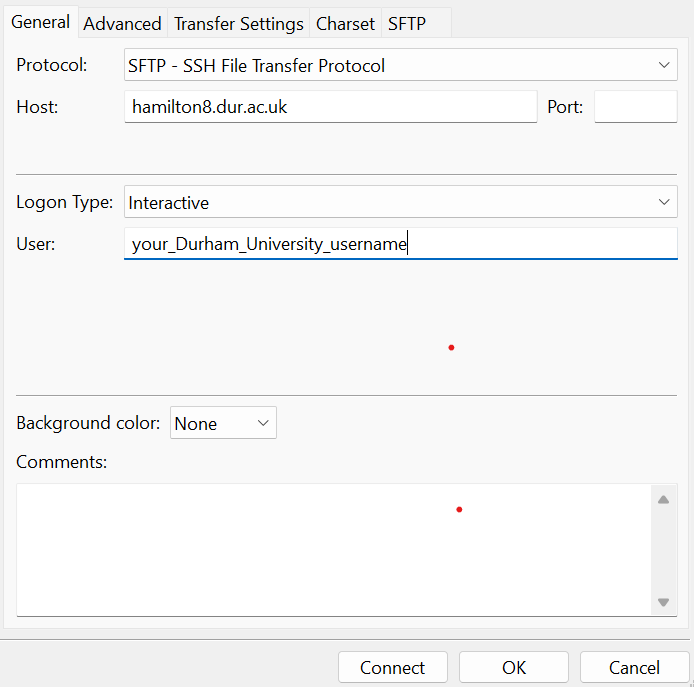
You should now see two panes, with your local machine's files on the left and your Hamilton files on the right. Drag+drop to copy files from one machine to the other.
FileZilla is also installed in AppsAnywhere and is suitable for use with University-issued (MDS) Windows laptops.
Other options
On Windows
A number of products for Windows allow you to copy files or directories between your local system and Hamilton using drag+drop.
- MobaXterm allows you to drag+drop files between its file viewer (on the left hand side of the window) and your Windows File Explorer window. MobaXterm is described further on the Logging in page.
- WinSCP allows you to view your local and Hamilton data in side-by-side panes and drag+drop between them.
On Apple Macs
The Cyberduck application can be used to provide a drag and drop interface between a Mac desktop and Hamilton.
On Linux
The GNOME desktop environment provides a file browser which is able to access remote storage and provide a drag+drop interface between a Linux desktop and Hamilton.
To use, start the Files application and click on + Other Locations on the bottom left. A small Connect to Server section should appear on the bottom right. In the Enter server address... section, type sftp://<username>@hamilton8.dur.ac.uk (replacing <username> with your University user name). Enter your password when prompted (Figure 2).
Once connected, you are able to bookmark the connection so you can more easily use it later. Right click on the newly created section <username> on @hamilton8.dur.ac.uk on the left and select Add Bookmark see Figure 3).
Figure 2. Accessing 'other locations' in the Gnome file browser

Figure 3. Bookmarks in the Gnome file browser

Transferring to CIS Research storage
The University provides dedicated storage for researchers - please see the CIS pages below for more details:
- Personal Research Storage (PRS)
Storage for data belonging to research-active staff
- Shared Research Storage (SRS)
Storage for data belonging to research projects
The links above also have information on how to access this storage from linux. The methods applicable to Hamilton are gio-mount and SMB Client. You should use these methods only interactively, not in batch jobs.
If you have an account on the CIS linux timeshare service, Mira, you can also use that to transfer files between your PRS/SRS space and Hamilton. Mira accounts can be requested here.
- Login to the Storage Manager website, taking note of the "Linux Desktop Service" path to the storage you wish to access (referred to below as <prs_path>)
- Login to Hamilton and take a note of the path (referred to below as <hamilton_path>) to the Hamilton data you wish to transfer to PRS
- Login to Mira
- On Mira, transfer files from Hamilton to PRS with:
scp hamilton8:<hamilton_path> <prs_path>
Transferring data to OneDrive
Each member of University staff has access to some Microsoft OneDrive storage. CIS recommend that linux users connect to this using a web browser. The firefox browser is installed on Hamilton and may be used for this purpose. You will need to login to Hamilton in a way that allows graphical windows to open.
Windows users who have connected to Hamilton via MobaXterm or WinSCP may be able to drag+drop files between Hamilton and OneDrive using those tools, although this is more suitable for small files.
Rclone can no longer be used to access the Univerisity's OneDrive storage.